
Get your invoices into Sage without retyping them
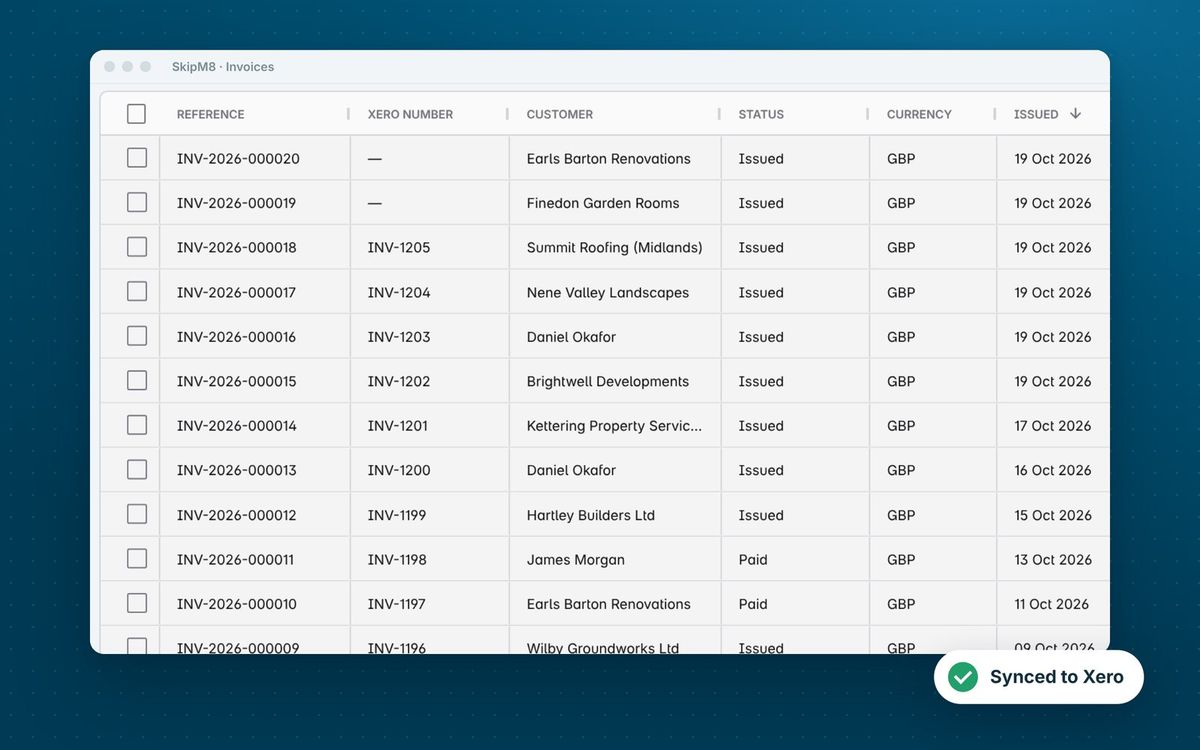
Copying invoices into your accounts by hand is slow and easy to get wrong. Connect SkipM8 to your Sage Accounting business and the invoices you raise go into Sage with their lines, VAT and customer address.
Payments, credit notes and refunds you record in SkipM8 follow their invoice. Payments entered in Sage are picked up by SkipM8 and recorded on the invoice, so your office sees an up-to-date balance.
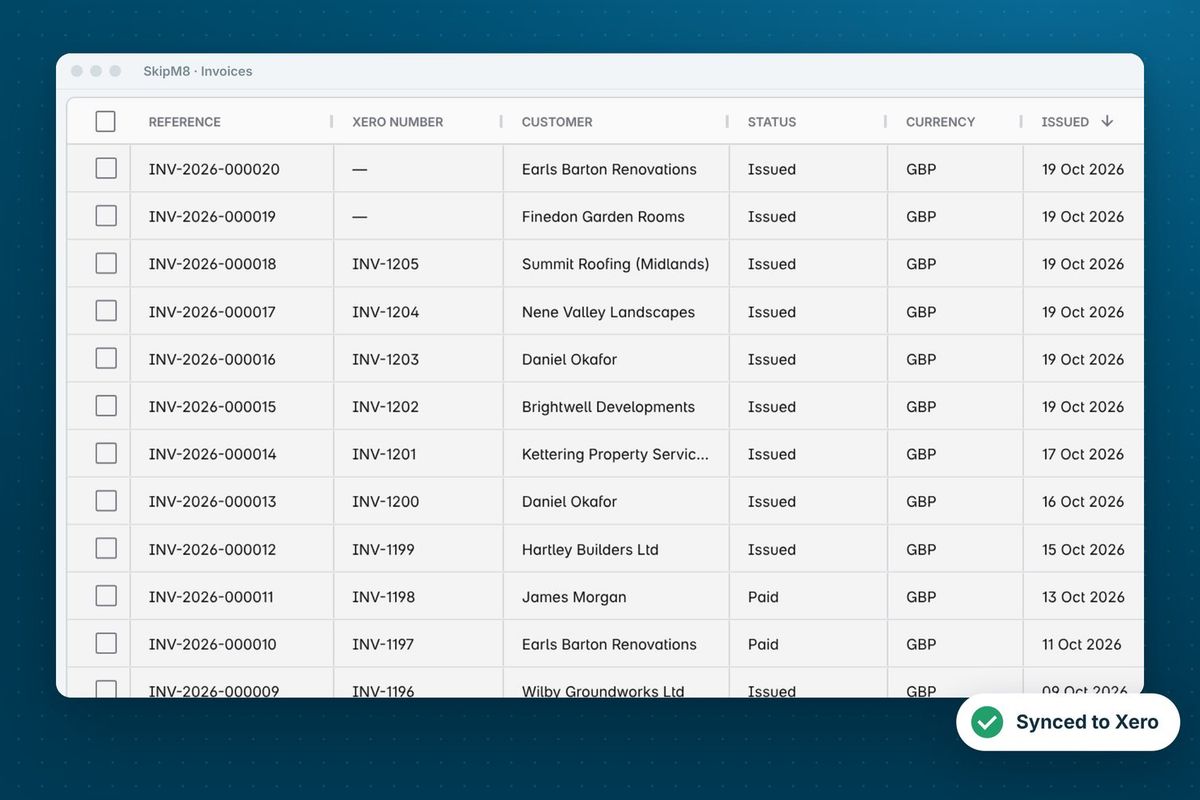
Each synced invoice shows its Sage number in SkipM8, so you can find it in either system.
Sage gets the full picture of what you billed
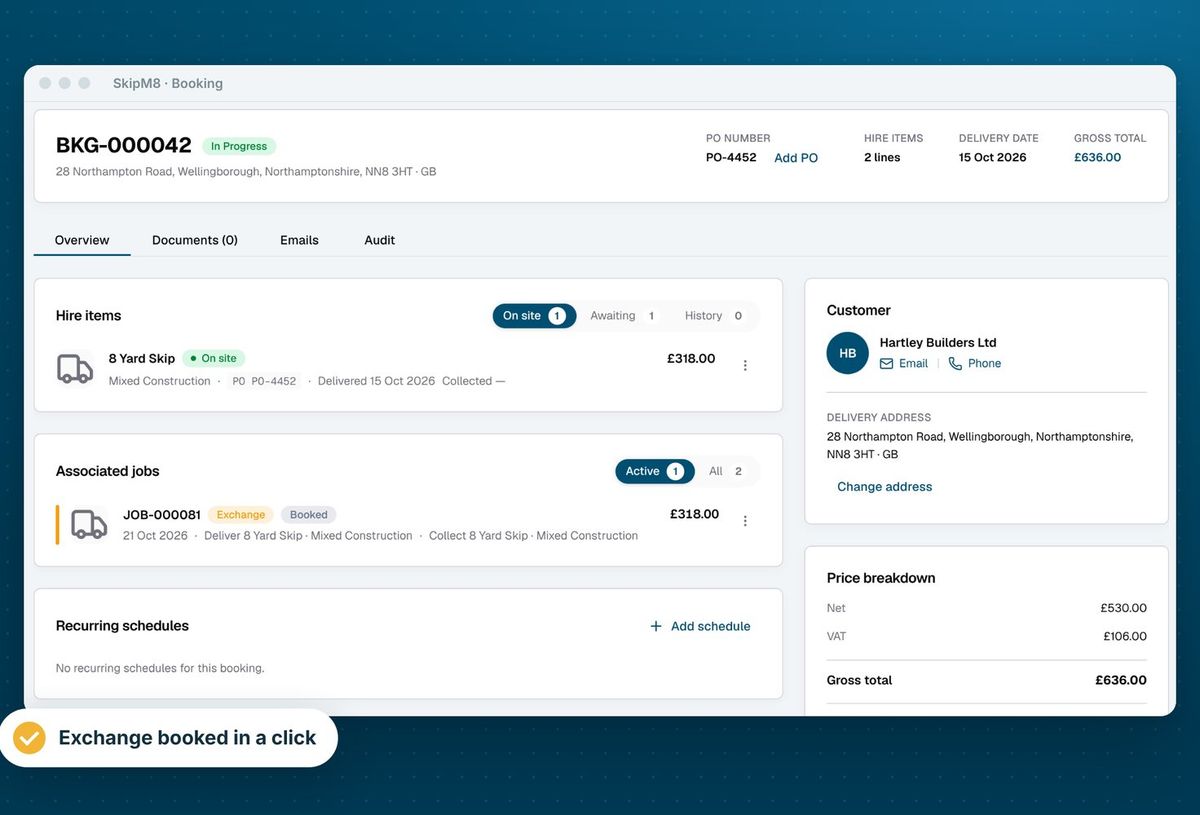
- Trace each invoice line back to the booking and job it bills.
- Send your customer's billing address, which Sage needs on every invoice.
- Avoid duplicate customers: they're matched in Sage by their exact name, or added if they're new.
- See payments you record paid into the Sage bank account you've mapped.
- Have credit notes set against the invoice they credit.
- Have refunds paid out against the credit note they repay.
Using Sage 200 or another package?
If you don't connect an accounting platform, you can still skip the retyping: export your invoices as a CSV and import them yourself. SkipM8 has layouts for Sage 200, Sage One, Xero, QuickBooks and Zoho Books.
Each invoice is exported once and marked as exported, and invoices already synced are never included, so nothing is imported into your accounts twice.
How to connect Sage
- Open Integrations in SkipM8 and choose Connect to Sage.
- Sign in to Sage and approve the connection.
- Open Configure accounting and pick the Sage ledger accounts for hire, service and surcharge lines.
- Match your tax rates to Sage tax rates and your bank account to a Sage bank account.
- Sync your first issued invoice, or switch on automatic issuing and syncing.
Related features
Our growing customer base
Skip hire and waste businesses across the UK run their bookings, dispatch and paperwork on SkipM8.





How Sage works with SkipM8
Sage works a little differently from Xero and QuickBooks.
How quickly do payments entered in Sage show in SkipM8?
Usually within about 15 minutes. Sage does not notify other software when a payment is recorded, so SkipM8 checks your synced, unpaid invoices for new payments every 15 minutes, working through them in batches. With a lot of unpaid invoices, a payment can take a little longer to come across.
Why hasn't a payment I entered in Sage come across?
Check that the payment is allocated to the invoice in Sage. A receipt left unallocated on the customer's account is not linked to any invoice, so SkipM8 has nothing to match it to.
Why is SkipM8 asking me to reconnect Sage?
Sage ends a connection that has gone unused for a while, or that has been revoked. When that happens, the Sage card on the Integrations page shows Connect to Sage again so you can reconnect.
My Sage login has more than one business. Which one is linked?
SkipM8 links the first business your login can reach and shows its name on the Integrations page. Check it is the right one before you sync.
Which plans include the Sage connection?
The accounting integration is included on Pro and Enterprise, and on Grow with the accounting add-on for a monthly fee.
See SkipM8 in action
Book a demo and we'll walk you through it with jobs like yours, or start on the free Solo plan today.